Quick Start Guide
Connecting the Hardware
Mounting
- Mount the Podium Connect Micro where the USB connection is easily accessible.
- The unit can be mounted in any orientation.
- Ensure the unit is kept away from direct heat sources.
Pigtail Connection
- If your system includes a pigtail connector, use the M8 4-pin connector for power and CAN communication.
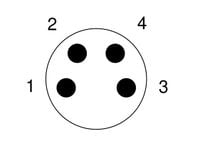
Male connector pictured
| Pin |
Connection |
Notes
|
| 1 |
CAN low |
White
|
| 2 |
Power |
Red, 9-24v / 1A (~12W)
|
| 3 |
CAN high |
Green
|
| 4 |
Ground |
Black
|
Power is standard automotive 12-14v (nominal).
Plug-and-Play Connection (AIM)
- If your system includes the AIM integration cable, plug it directly to the AIM Data Hub.
Create Your Podium Account
Create Device and Streaming Key
- Create an account on Podium
- Setup the Device Name
- Make a note of the Streaming ID provided, so you can enter it into the wizard later.

Downloading the RaceCapture App
Windows/OSX
Android/iOS
First-Time Setup Wizard
Configure System Presets
Select Favorite Race Tracks
Configure Telemetry Streaming Key
Configure WiFi Connection and WiFi Telemetry
Verify Telemetry
Comprehensive Setup Guide
Data System Cable Connection
Pigtail for MoTeC, ECUmaster, VBox or Others
AIM Standard Cable
Connecting to Your Data System
Required CAN Channels for Telemetry
CAN Bus Configuration
Baud Rate, Termination
CAN Channel Mapping Guide
Lua Scripting and Virtual Channels
Driver ID and Heart Rate Sensor Setup
RaceCapture App & Podium General Information
Telemetry and Logging Setup
Enabling WiFi Telemetry
Setting Sample Rates
SD Card Logging
Buffering Telemetry to SD
Real-Time Podium Features
Firmware and Software Updates
Data System Integration Guides
Troubleshooting and Diagnostics
Technical Specifications
Additional Tutorials and How-To Guides


